

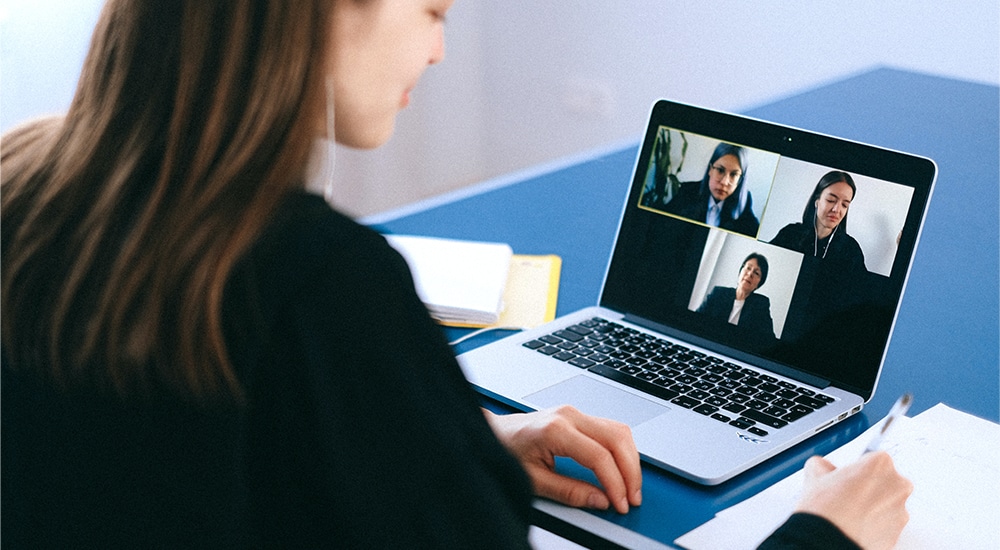
Video can be distracting when not done correctly. Contribute to a successful and productive video conference call by looking attentive and sounding clear – follow these best practices.
Meeting Roles Defined
Meeting roles are even more important during conference calls whether video or audio-only since many non-verbal cues and feedback are removed when remote. Define and communicate these roles prior to starting the meeting.
Leader:
ultimately responsible for the meeting and tackling the agenda
Moderator:
responsible for maintaining the flow of conversation
- Note or highlight anyone that raised their hand to speak
- Keep an eye on the chat dialogue box
- Help sort out whenever people speak up at the same time
Note taker:
responsible for taking notes and sharing with attendees to confirm items discussed, outcomes, and action items
Attendees:
responsible for being attentive, contributing to the conversation at appropriate times, and doing your best to keep distractions to a minimum and comments/questions on-point
How to look professional and attentive on your video conference call

Make eye contact with the camera
- Position the camera at eye level
- Don’t look at yourself
- When speaking look at the camera
- When someone else is speaking look at their video
- When using multiple screens, open your notes application or reference materials on the screen with the camera

Positioning and lighting
- Natural light in front of you is best – never position yourself with the brightest light behind you
- Test your camera position (most offer a preview before you sign on) to make sure you are far enough away to show your whole head and enough of your upper body to see hand motions

Audio factors
- Make sure only one microphone is on to avoid feedback
- Mute is the default and unmute to speak – lessens distracting noises like typing
- If on an audio-only call that you are not leading, state your name prior to each time you speak

Connection back-up
- If your connection is unstable, log on by computer for video and dial in by phone for audio
- Make sure your computer microphone is turned off
- Make sure you are using your cellular service (versus WIFI) if using a mobile phone

Background considerations
- Declutter surfaces or position yourself directly in front of a wall
- Use the blur-background setting or load an image for your background (you can have fun with this, but be professional)
Summary: improve communication and productivity with video conference call
- Assign roles to help communicate and capture all ideas
- Present yourself in a professional manner to communicate both verbally and non-verbally
- Set up your conference call technology to help you be an attentive and active participant

